
Table of Contents
This article provides getting-started information for working with the B-Box Micro inverter controller , focusing on the programming workflow and highlighting the easy transition from simulation to laboratory-based testing. As a practical use case, a basic three-phase inverter operated in open loop is implemented, derived from the Three-phase inverter example.
General advice for programming and operating imperix controllers is also given in PN138. Applicable getting-started instructions, specific to the ACG SDK, are also summarized in PN134.

Software for the B-Box Micro
To program its controllers, imperix provides two Software Development Kits (SDKs):
- The ACG SDK for graphical programming using Automated Code Generation (ACG) from Simulink or PLECS.
- The CPP SDK for development using C/C++ code.
This page focuses on using ACG SDK with Simulink, which is the most common workflow with the B-Box micro. Most aspects are either identical or easier to apprehend with PLECS. The ACG SDK is compatible with recent versions of both softwares.
Detailed instructions for installing the SDK can be found in the Installation guide. Essentially, the main steps can be summarized as:
- Installing (if not done already) the third-party tools, meaning either Simulink or PLECS, along with the required code generation add-ons.
- Downloading and running the installer for the ACG SDK. Download links for either SDKs are available on https://imperix.com/downloads/. Compatible versions are indicated on the same page.
- For Simulink, a MEX compiler for C++ is required to be installed. Once this is done, the imperix installer takes care of the rest of the configuration.
- For PLECS, the path of the freshly installed Imperix_Controllers target support package (
C:\imperix\BB3_ACG_SDK\plecsby default) must be added to the PLECS Target support packages path in the PLECS preferences.
Developing control models
As the imperix knowledge base covers a wide range of application examples, users can often start from a pre-existing example that is reasonably close to the intended application. It is also possible to start from scratch using the imperix template model, available in the ACG SDK’s installation folder.
Imperix control files are structured into two distinct subsystems: the Controller and the Plant.
- The Controller subsystem contains the control algorithms, implemented with any standard Simulink block that supports code generation, together with hardware-related blocks from the imperix Control library. The same subsystem can be used for offline simulation as well as for automated generation of the run-time code.
- The Plant subsystem contains a simulation model of the controlled system (plant), typically implemented with Simscape Electrical components (in Simulink) or PLECS circuits (in PLECS), along with blocks from the Power library that model imperix power products. The Plant subsystem is used solely to pre-validate the control algorithm in offline simulation. It is therefore optional, but highly recommended.

Further explanations regarding the available libraries, how imperix models are typically built, as well as how hardware-specific aspects are modeled are provided in the Getting started guide foe the ACG SDK. Additionally, specificities to each software, notably regarding control discretization, are given in are given in PN135 for Simulink and PN136 for PLECS.
Generating run-time code
The same Simulink/PLECS model can be used for both simulation and code generation. To build the code, press Ctrl+B in Simulink (ensuring that the CONFIG block is set to Automated Code Generation) or Ctrl+Alt+B in PLECS. The software automatically generates the code for the Controller subsystem, compiles it, creates an executable, and opens Cockpit to select a target for deployment.
– Licenses are usually pre-loaded on the controllers.
– All B-Box micro units require a license.
– The software can be installed on an unlimited number of computers.
More details on the licensing of imperix software are provided in imperix licensing.
Programming the B-Box Micro
Detailed documentation on how to program imperix controllers is available in PN138. Once code is generated, this simply consist in connecting to the desired B-Box micro and loading the code.
Connecting the B-Box Micro to the host PC
A connection to the host computer is required to deploy the user code and to provide real-time access to controller variables during run-time. The connection can be made either over an existing Ethernet local network or a direct (point-to-point) connection using a single Ethernet cable.
In both cases, a dynamic IP address should be assigned automatically, and no specific configuration is required. Nonetheless, if required, further information on this process is given in PN138.

Loading and starting the code with Cockpit
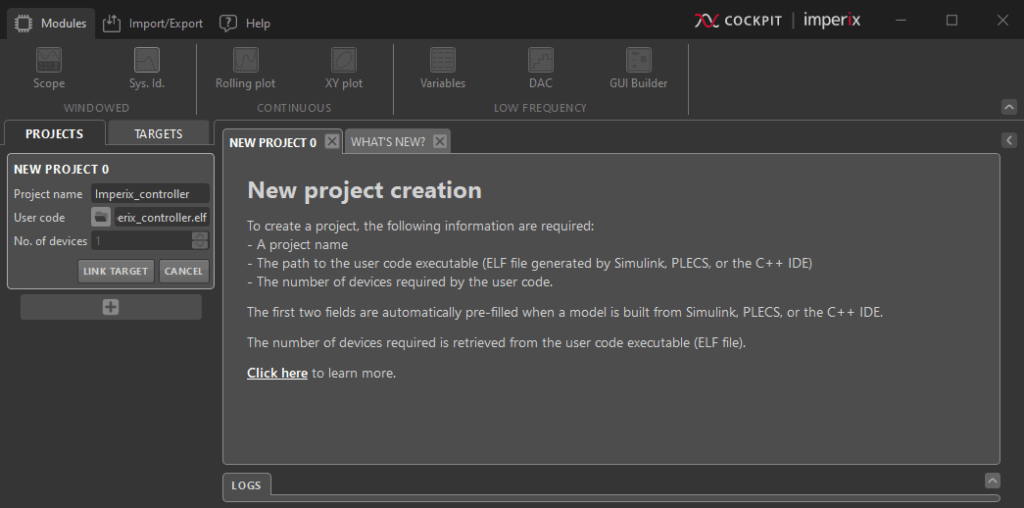
Once the code is built from Simulink or PLECS, Cockpit opens automatically and prompts the creation of a new project. Projects associate a model (Simulink or PLECS) with a target (the controller receiving the corresponding runtime code).
To load the user code (.elf file) generated from Simulink or PLECS onto the target and initiate execution, the Link Target button in Cockpit is used. The appropriate device is selected from the left-hand panel, after which the code is automatically transferred to the target and executed.
More details regarding the Projects and the Targets views are given in the Cockpit User Guide.
Configuring the analog inputs and safety limits
Hardware configuration
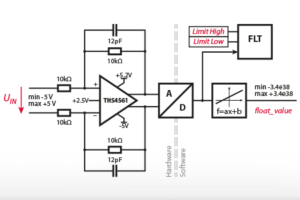
Unlike the B-Box 3 and B-Box 4 controllers, the B-Box Micro doesn’t require any hardware configuration of its analog inputs, as it does not feature a programmable analog front-end. Nonetheless, each analog input of the B-Box Micro possesses an FPGA-based comparator used as a threshold-based safety mechanism. These thresholds can be configured directly from Cockpit, in the Analog input tab of the Target view.
A numerical example is given in the hands-on example below. Also, more details on how to configure these safety thresholds are available on PN106.
Software configuration
In the Simulink or PLECS model, the ADC peripheral blocks must be configured with the following parameters:
- Sensor: by selecting the right sensor from the drop-down list, its sensitivity is set. If a third-party sensor is used, its sensitivity can be entered manually in the Sensitivity parameter
- In the Acquisition tab, the Match B-Box Micro input full-scale check box must be checked to account for the analog full-scale of +/- 5V of the B-Box Micro

First hands-on example
The illustration shows the employed use case example, where the B-Box Micro controls a three-phase inverter.

Open loop control of a three-phase inverter
Hardware setup
This setup can be implemented with the imperix starter kit. Some additional material, listed below, is however required to test the system before operating the complete converter.
- Laboratory DC power supply
- 3x power resistors
- 3x 2.5mH inductor
During the presented experiments, the inverter is connected to a three-phase RL load, under the following conditions:
- DC-bus voltage: 100 V
- Control frequency: 20 kHz
- Sampling phase: 0.5 (middle of the switching period)
- Load resistance: 6 Ω
- Load inductance: 2.5 mH
Simulink model
The Simulink model available for download below implements a simple open-loop control of the three-phase inverter. To illustrate data monitoring on the B-Box Micro, the DC-bus voltage and the phase currents are measured and logged using Probe blocks. The six gating signals for the inverter’s MOSFETs are generated with Carrier-based PWM modulator blocks.


Configuration of the safety limits
Assuming that the load current is measured using the embedded current sensors of PEB8038 modules, whose sensitivity is 50.0 mV/A, the Limit high and Limit low values can be computed as follows. The same approach applies to the DC bus voltage sensor.
- Current sensors (CH0, CH1, CH2)
- Maximum acceptable instantaneous current: ±8 A
- Corresponding sensor output: ±8 A x 50.0 mV/A = 400 mV
- Limit high: +0.4 V and limit low: -0.4 V
- Voltage sensor (CH3)
- Maximum acceptable DC voltage: 120 V
- Corresponding sensor output: 120 V x 4.99 mV/V ≈ 600 mV
- Limit high: +0.6 V and limit low: -0.2 V

Run-time monitoring using Cockpit
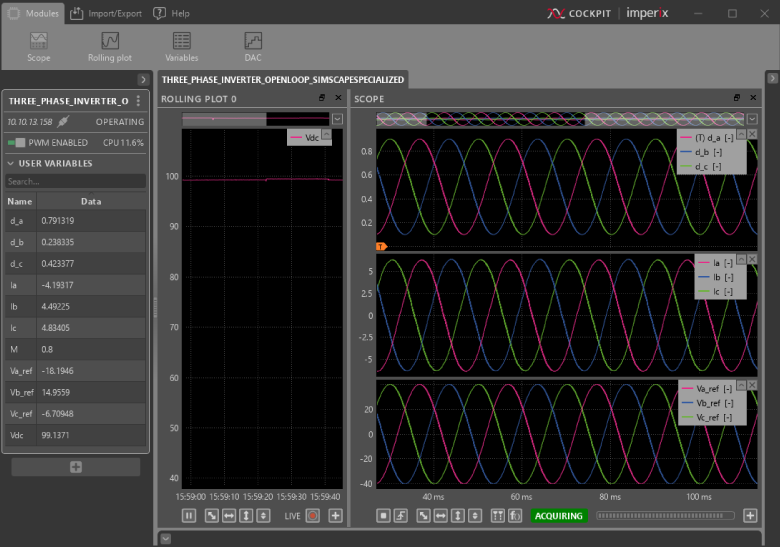
Each Cockpit project contains a view in which users can drag and drop modules to monitor and alter user-defined variables. Any signal in the user code connected to a Probe block can be monitored in real time using the Scope or Rolling plot modules. Additionally, the Tunable parameters defined in the user code can be modified at run time from within the Variables module. A full guide on Cockpit monitoring software is addressed here.
Once the safety limits are configured, the PWM outputs can be enabled to monitor the behavior of the user-defined variables, as shown below.
How to acknowledge faults
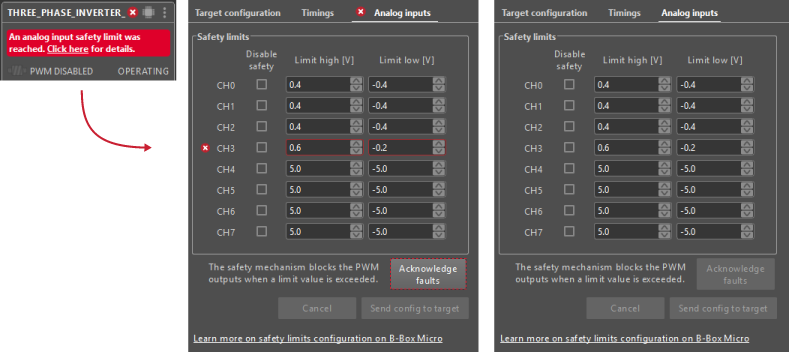
If an error occurs during operation, the PWM outputs are blocked. To enable the PWM outputs again, the fault must be acknowledged.
For instance, let’s consider a step change from 100 V to 130 V for the DC voltage supply. Since the high limit is set to 120 V, the voltage crosses the imposed threshold once the voltage step occurs. Hence, the PWM outputs are blocked, and the error message appears on the screen.

To resume operation, the fault needs to be acknowledged. To do so, a shortcut on the error message is given to rapidly access the target limit configuration panel. The channel and the relative exceeded limit are highlighted in red. The button “Acknowledge faults” authorizes the return in the operating mode.
Where to go next?
A broad spectrum of control techniques can be easily implemented and tested with the starter kit. The examples provided below are ready-to-use and fully tested:
- PI control:
- Phase detectors:
- Modulation techniques:
- Advanced control techniques:
Thanks to the modular nature of the modules and plug-and-play connectivity of the whole starter kit, many different applications and topologies can be addressed quickly and with high performance:
 By Benedikt Borter • February 6, 2024 • PN106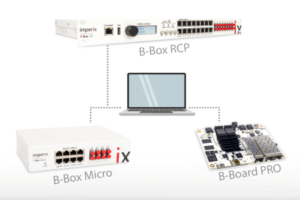
 By Julien Orsinger • September 20, 2022 • PN138